
Self-managed LLMs with Elasticsearch

1. Introduction
Modern observability and search platforms increasingly rely on Large Language Models (LLMs) to surface insights, answer questions in natural language, and accelerate root-cause analysis. Elasticsearch with its powerful Elastic AI Assistant is no exception. Out of the box, Elastic integrates with cloud-hosted providers like OpenAI and Azure OpenAI. But what if you need complete control over your data, want to operate in an air-gapped environment, or simply want to experiment with state-of-the-art open-source models?
This blog walks you through the end-to-end process of running Meta's Llama 3.3 70B Instruct model locally using LM Studio, quantized to 4-bit (Q4_K_M) for efficient hardware utilization, and wiring it up to your Elastic deployment via a custom connector all without a single API call leaving your infrastructure.
2. Why Self-managed LLMs?
There are several compelling reasons to host your own LLM alongside Elasticsearch rather than relying exclusively on cloud APIs:
- Data Privacy & Compliance: Sensitive log data, metrics, and traces never leave your network. Ideal for finance, healthcare, and government workloads.
- Air-gapped Environments: On-premise or classified deployments where external API calls are prohibited.
- Cost Control: No per-token cloud billing. Fixed hardware costs become predictable at scale.
- Model Freedom: Pick the exact model, version, and quantization level that suits your use case.
- Latency: Local inference can be faster than round-trips to a remote API for high-frequency assistant queries.
3. LM Studio Components
LM Studio acts as a local inference server that exposes an OpenAI-compatible REST API.
Elastic's OpenAI connector then points to this local endpoint instead of the official OpenAI cloud.
| Layer | Component | Role |
|---|---|---|
| Inference Engine | LM Studio | Loads the GGUF model, exposes /v1/chat/completions on localhost:1234 |
| LLM Model | Llama 3.3 70B Q4_K_M | 4-bit quantized model delivering near full-precision quality |
| Search & Observability | Elasticsearch + Kibana | Stores data, visualizes, runs AI Assistant queries |
| Connector | OpenAI Connector (Elastic) | Routes Elastic AI Assistant requests to the local LM Studio endpoint |
4. Setting up LM Studio
LM Studio is the simplest way to get a local LLM inference server running. It handles model discovery, download management, quantization selection, and server startup all from a clean desktop UI or CLI.
4.1 Install & First Launch
Download the LM Studio installer from the official website and run through the standard installation process. LM Studio must be launched via its GUI at least once before you can use the CLI this initializes all required app directories and configuration files.
- Local deployments: Launch LM Studio directly using the desktop GUI.
- GCP cloud deployments: Launch via Chrome RDP with an X Window System session.
- Other cloud platforms: Use any secure remote desktop RDP, VNC over SSH tunnel, or X11 forwarding to open the GUI at least once.
After the first GUI launch, you can start the inference server headlessly using the CLI:
sudo lms server start
4.2 Download the Model
Once LM Studio is installed and running:
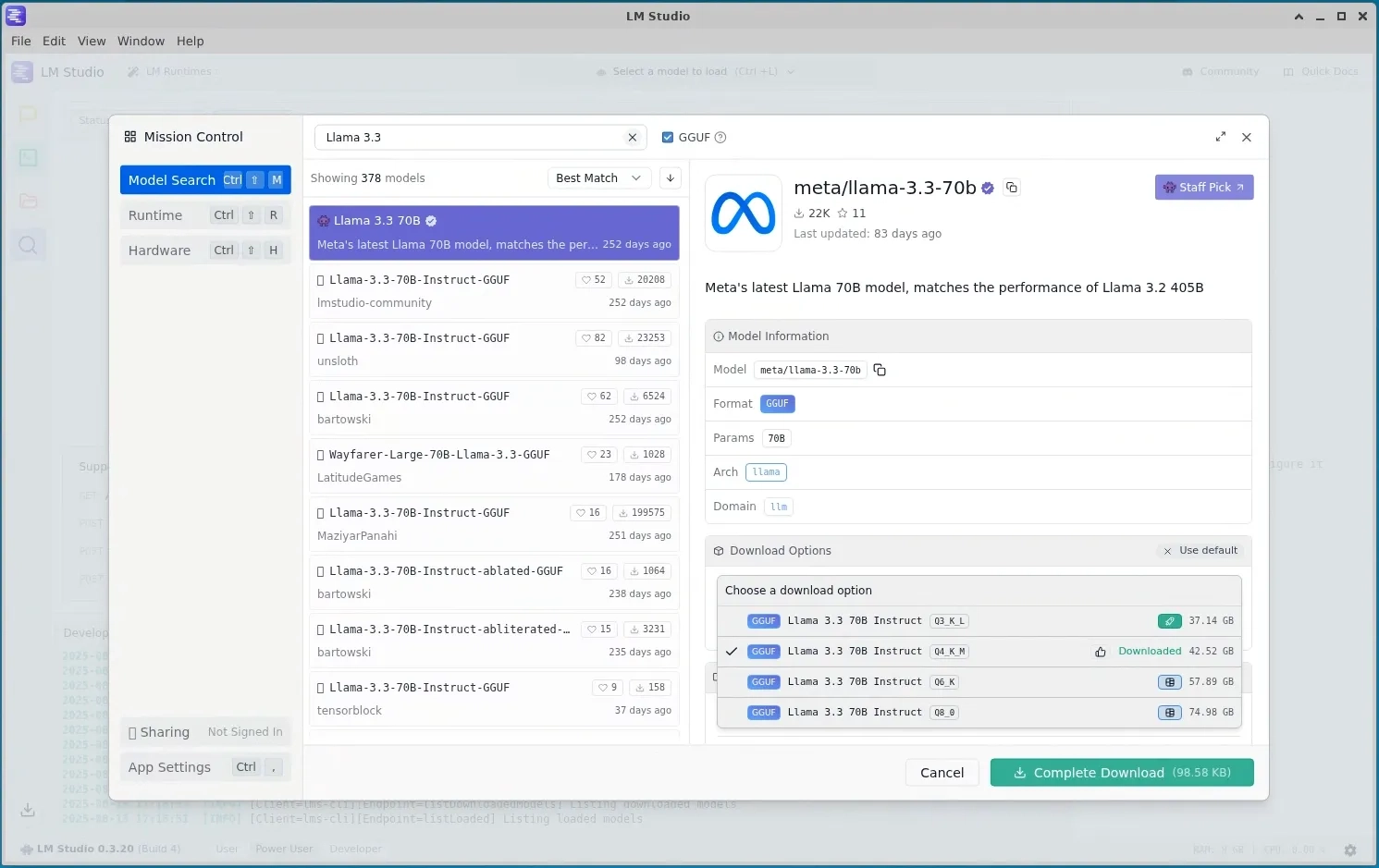
- Open the Discover window in LM Studio.
- Search for Llama 3.3 or your preferred model. The model must include 'instruct' in its name to be compatible with the Elastic AI Assistant.
- Look for models published by verified authors (indicated by the purple verification badge).
- View the download options and select a recommended variant (shown in green). The thumbs-up icon indicates good performance on your specific hardware.
- Download the Q4_K_M variant of Llama-3.3-70B-Instruct (~40 GB).
5. Loading the Model in LM Studio
After the download completes, load the model into memory. LM Studio provides two methods CLI and GUI. The CLI approach is recommended for server and cloud environments.
5.1 Option A CLI (Recommended)
Open your terminal and run the following commands in sequence:
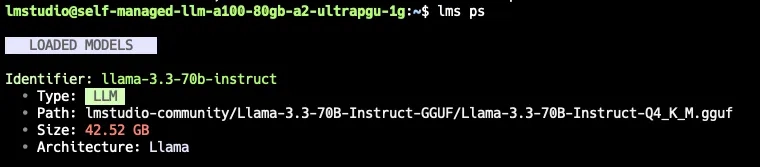
# Verify LM Studio CLI is availablelms# Check server statuslms status# List all downloaded modelslms ls# Load the model with 64k context and max GPU offloadinglms load llama-3.3-70b-instruct --context-length 64000 --gpu max# Verify the model is loadedlms ps

Expected output
After lms load, you should see: 'Model loaded successfully'. The lms ps command confirms the loaded model name and its allocated context length.
5.2 Option B GUI
If you prefer a visual workflow:
- Navigate to the My Models window your downloaded model will appear here.
- Click on the Developer window in the left sidebar.
- Toggle the Start server switch at the top left. Once the server starts, you'll see the host address and port (default: localhost:1234).
- Click Select a model to load and choose your model from the dropdown.
- Select the Load tab on the right side and set the Context Length to 64,000. Reload the model to apply.
6. Configure the Connector in Your Elastic Deployment
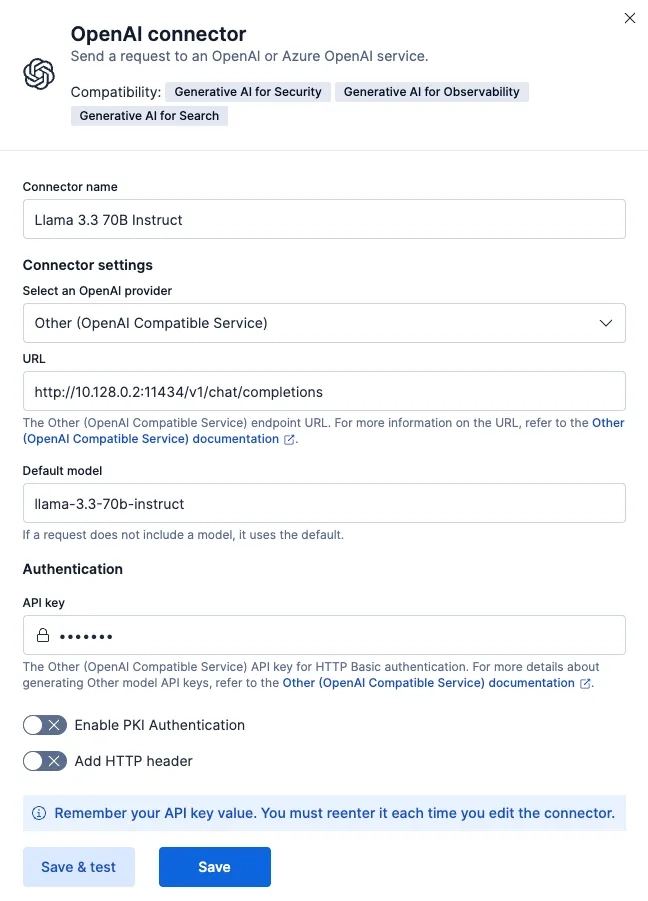
Elastic uses its OpenAI connector for this purpose since LM Studio implements the OpenAI-compatible API, the connector works seamlessly.
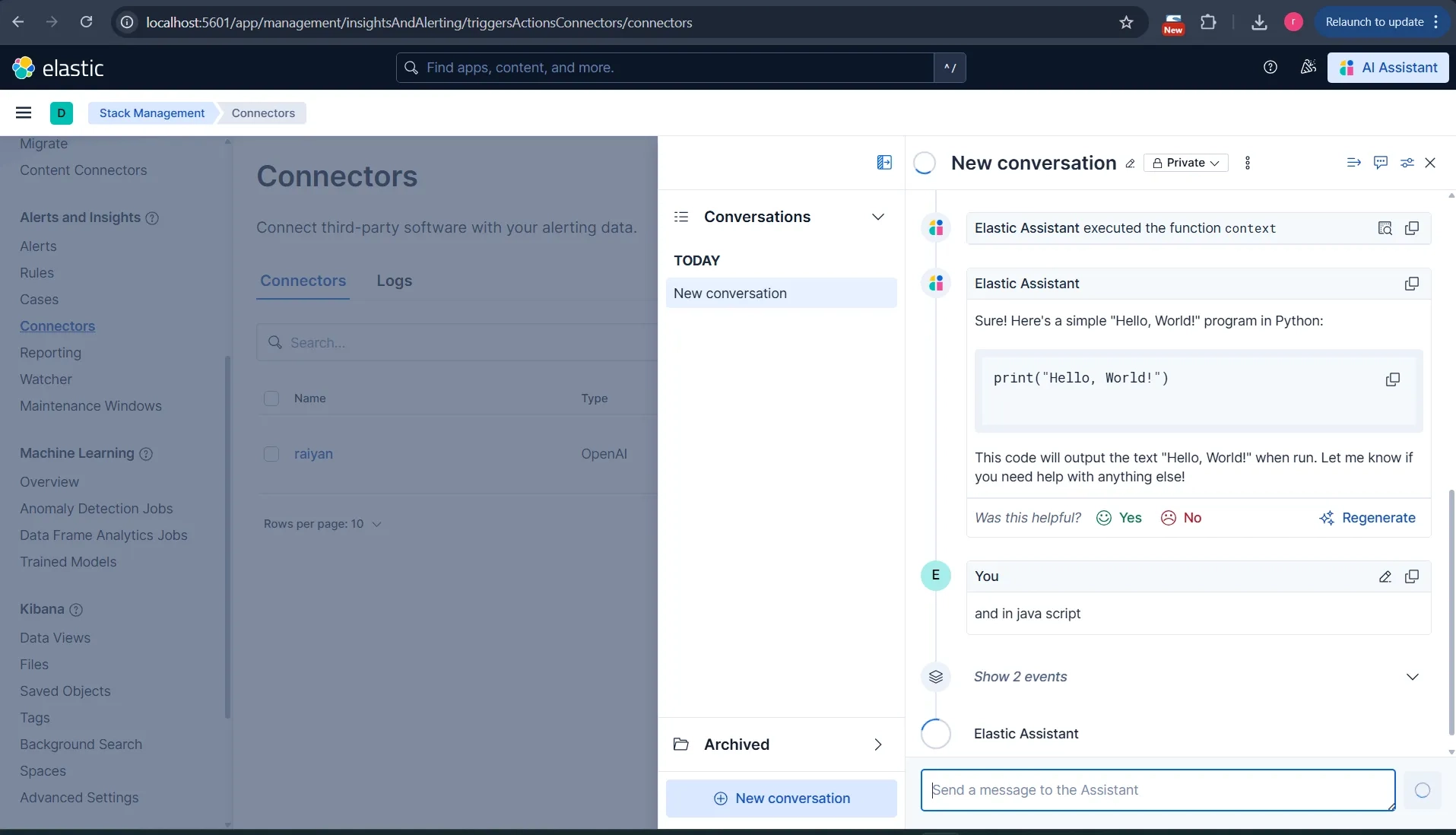
Your Elastic AI Assistant is now powered by your self-managed Llama 3.3 70B model. The screenshot below shows the completed OpenAI connector configuration form:
7. System Requirements for LM Studio
LM Studio is a cross-platform desktop application that manages model downloads and provides an embedded inference server. Before installing, verify your system meets the following requirements.
→ Official LM Studio system requirements
8. LLM Specifications Llama 3.3 70B Instruct
Throughout this guide we use Meta's Llama 3.3 70B Instruct model in its GGUF Q4_K_M quantized form, published by the lmstudio-community on Hugging Face.
8.1 Model Specifications
| Attribute | Value |
|---|---|
| Model Creator | meta-llama |
| Original Model | Llama-3.3-70B-Instruct |
| Quantization Format | GGUF Q4_K_M (4-bit) |
| Parameters | 70 Billion |
| Context Length | 128,000 tokens |
| Supported Languages | English, German, French, Italian, Portuguese, etc |
→ Model on Hugging Face (lmstudio-community)
8.2 Hardware Specifications
Running Llama 3.3 70B requires substantial hardware. The following are the recommended minimums for production-grade inference:
| Component | Minimum | Recommended |
|---|---|---|
| RAM | 40 GB | 64–128 GB |
| GPU VRAM | 48 GB | Dual RTX 4090 / A100 / Apple M2 Ultra 64 GB+ |
| Storage | 100 GB NVMe SSD | 200 GB+ NVMe SSD |
| CPU | AVX2 support | Modern multi-core (12+ cores) |
8.3 VRAM Calculation
Understanding VRAM requirements is critical before you start downloading a 40 GB model file. The core formula is:
VRAM (GB) = (parameters × bits_per_weight / 8 / 1e9) × 1.2For Llama 3.3 70B at Q4_K_M (~4.5 effective bits):= (70,000,000,000 × 4.5 / 8 / 1,000,000,000) × 1.2≈ 39.375 × 1.2≈ ~47.25 GB VRAM (weights only)
Why a single RTX 4090 is not enough
A single RTX 4090 has 24 GB of VRAM roughly half of what Llama 3.3 70B at Q4_K_M requires. You need either: dual RTX 4090s (48 GB combined), an NVIDIA A100/H100, or Apple Silicon with 64 GB+ unified memory.
9. Troubleshooting
| Issue | Likely Cause | Fix |
|---|---|---|
| Model fails to load | Insufficient VRAM | Reduce context length or use a smaller quantization (Q3_K_M) |
| Connector returns 404 | Wrong URL path | Ensure URL ends with /v1/chat/completions |
| Connection refused | LM Studio server not running | Run: lms server start or toggle Start server in GUI |
| Slow responses | CPU fallback (no GPU offload) | Set gpu max in CLI or enable GPU layers in GUI |
| Empty responses | Model not instruct-tuned | Ensure model name contains 'instruct' |
10. References
- Elastic Docs Connect to a local LLM for Observability using LM Studio
- Hugging Face Llama-3.3-70B-Instruct-GGUF (Q4_K_M)
- LM Studio Llama 3.3 70B Model Page
- LM Studio System Requirements
- CraftRigs VRAM Calculator
- Elastic Docs LLM Performance Matrix for Observability
Written by: Raiyan Abdul Hai (Data-Engineer at qavi-technologies)

More Blogs
Discover the latest insights and trends in technology with the Qavi Tech Blog. Stay updated with expert articles, industry news, and innovative ideas.

Planning an Elastic Deployment? Get the Official Checklist (Free PDF)
Reduce risks, improve performance, accelerate go-live.